If you are experiencing difficulty accessing your account, this FAQ is the fastest way to resolve your issue. Although problems often arise from using incorrect or non-registered credentials, this section directly addresses the most frequent concerns, including "cannot log in", "forgotten password", and issues with “receiving the password reset email”.
To find the solution, click the question that best matches your situation below.
Received “Invalid Credentials” error message. What is the issue?
It means either you haven’t created a Glue Up account yet, or the password is incorrect. If you believe you already have an account associated with this email address:
- Click HERE to reset your password.
-
Or, click HERE to try the one-time passcode to log in.
The passcode reset screen is shown below.
And you will receive a 6-digit passcode to your inbox, shown below.
If that failed, click HERE to register an account and try again.
I have a membership profile with an organization, but why do I receive an "Invalid Credentials" error message?
If you applied for a membership before the organization started using Glue Up, your membership profile will be migrated to the platform. However, your Glue Up account—which allows you to manage your membership—is not created automatically, and you will need to create one yourself. This is the standard procedure.
If you try to log in with your membership email and receive an "Invalid Credentials" message, the most common reason is that the account has not yet been created.
During Renewal - I clicked "Renew Now" and tried to reset the password, but I couldn't reset. What's the issue?
When you renew your membership with the system notification, you need to click the "Renew Now" button shown below.
After clicking, you will land on the page shown below.
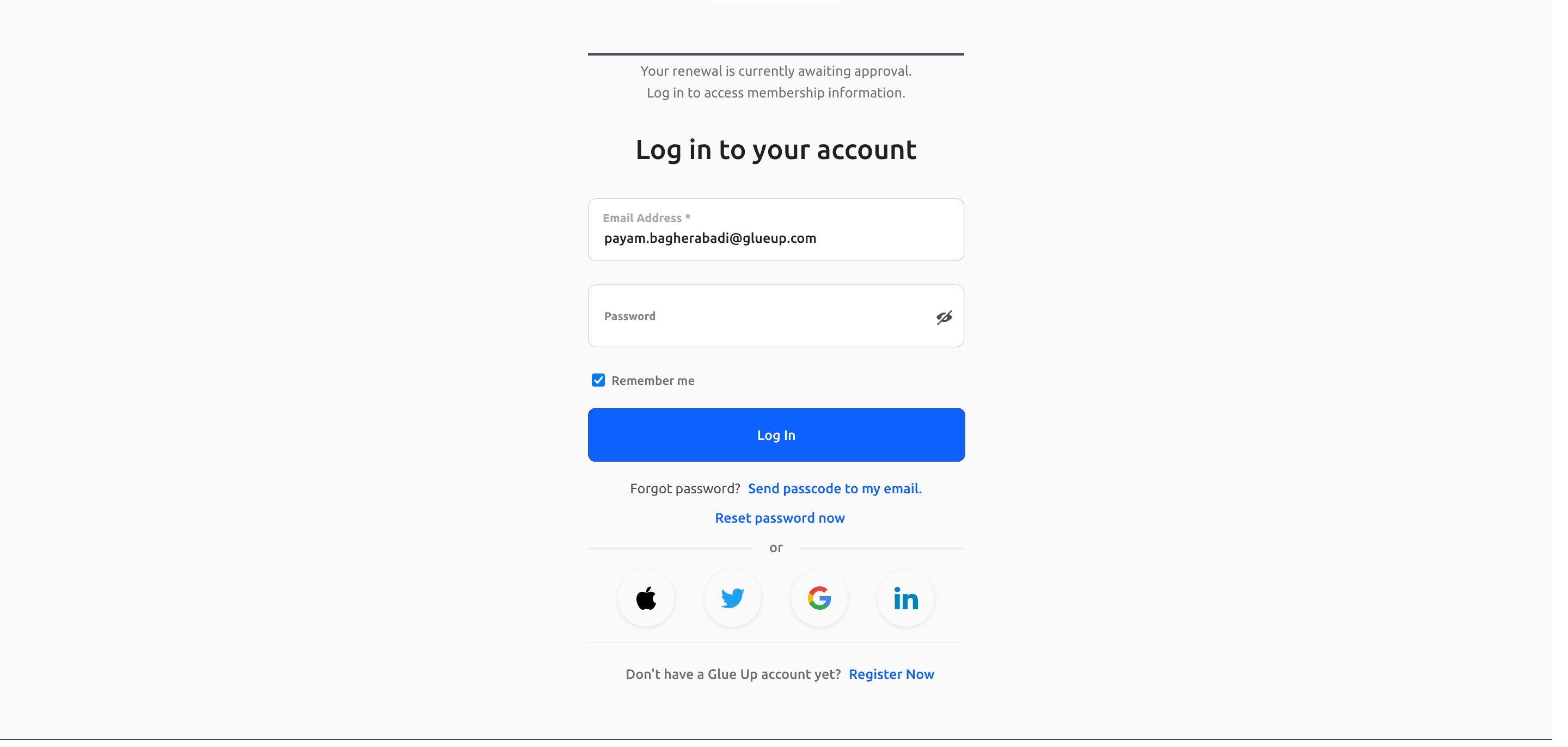
Proceed to log in to your Glue Up Account. However, if you receive an "Invalid Credentials" error message, it means either:
- Wrong password: You have already created a Glue Up account. Please click HERE to reset your password and log in to renew your membership.
- No account yet: It could mean that you are renewing your membership through Glue Up for the first time, and your Glue Up account, where you can manage your membership profile, hasn't been created. Please click HERE to register an account and try again.
- You can find the detailed explanation of why you don't have an account yet from the 2nd FAQ, "But I have a membership profile with an organization, why do I receive an "Invalid Credentials" error message?".
- You can find the detailed explanation of why you don't have an account yet from the 2nd FAQ, "But I have a membership profile with an organization, why do I receive an "Invalid Credentials" error message?".
Received “Verify Your Email Address” message. What do I do?
Click “Click here” to send the verification email to your inbox. If it doesn’t arrive, check your spam folder, too.
- After you successfully send the verification email to your inbox, you'll see the pop-up window as shown below.
- In your inbox, you'll receive a verification email as shown below. Click "Click Here To Verify Your Email", and you're able to enter the My Glue page.
Received “Existing Email Address” error message. What do I do?
It means you already created a Glue Up account. Visit HERE to reset your password.
Email Address Verification/Reset Password email did not arrive. What do I do?
Contact our support team with the format below.
- Subject line: Cannot receive system email.
- Email body:
- Issue: Cannot receive verification email. /Cannot receive password reset email. (Choose depending on your case.)
- Error message you've received: (Screenshot of the Title of the error message)
- Your Email address:
- Associated organization name: (If applicable)
After you submit the request, you'll receive an update from our support team as soon as they verify the issue.
Cloudflare authentication fails. What should I do?
- Refresh the Page: If the CAPTCHA is stuck, a simple page refresh (using F5 or Ctrl+R) often clears a temporary loading glitch and resets the challenge.
- Check Your Connection: A slow or unstable internet connection can prevent the verification process from completing. Please ensure your connection is stable and strong.
- Disable VPN/Proxy: Security services like Cloudflare may flag traffic originating from a VPN or proxy as suspicious. Try disabling them temporarily and then reloading the page to attempt the CAPTCHA again.
- Clear Browser Data: Corrupted cache or cookies can sometimes interfere with how the CAPTCHA loads. Clear your browser's cache and cookies, then try verifying again.
- Try a Different Browser: To determine if the issue is browser-specific, try completing the CAPTCHA in an alternative browser (e.g., Chrome, Firefox, or Edge).
- Disable Extensions: Extensions such as ad-blockers or privacy tools are known to interfere with CAPTCHA functionality. Try disabling them temporarily before retrying the challenge.
- Update Your Browser: Using an outdated browser can lead to compatibility issues. Ensure you are running the latest version of your preferred browser.
- Verify System Time: An incorrect system time and date can sometimes cause security validation errors. Please check that your computer's time settings are accurate.
If you've tried all the above steps and the issue continues, please contact Glue Up support team for further assistance.